
Migration tool
Easily transfer settings to a new IronCAD version
When upgrading to a new IronCAD version, you naturally want to be able to continue working quickly, without wasting time resetting your working environment. Think custom ribbons, toolbars, interface layouts and personal preferences.
That’s why IronCAD includes a new migration tool that lets you easily export settings from an older version and import them directly into a newer version. This way you keep your familiar way of working and avoid unnecessary configuration work.
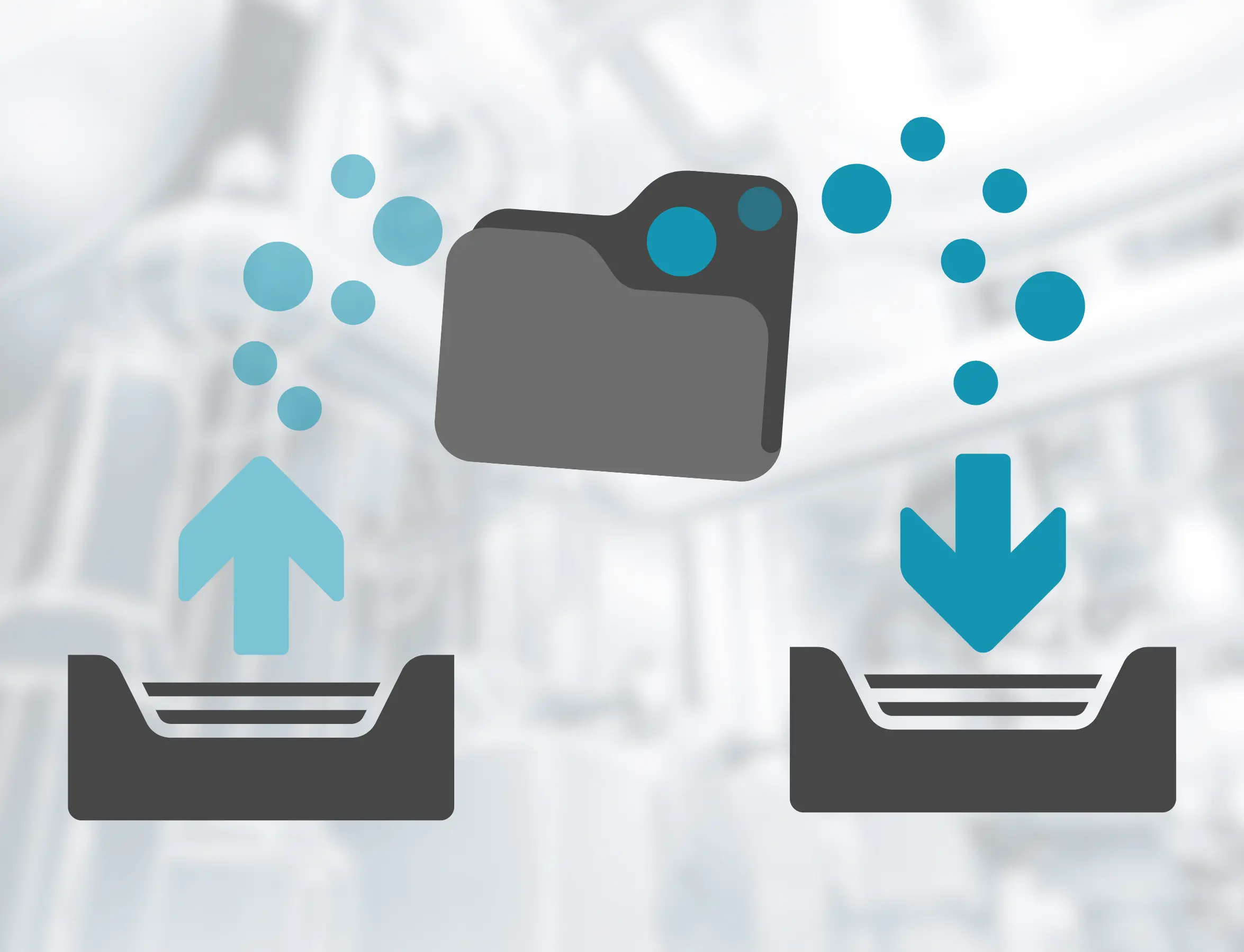
What is the migration tool in IronCAD?
The migration tool (Environment Migration Tool) is designed to easily transfer user settings from an existing IronCAD installation to a new version. This avoids having to manually reset your entire interface and preferences. It supports exporting and importing of, among others:
UI settings and interface layout.
Ribbons, toolbars and menu customizations
Tool options and user preferences
Registry settings and configuration data
Scene, Drawing and Draft settings
Exporting settings from an older IronCAD version
The migration tool can export settings from any previous IronCAD version installed on the same system. This allows you to back up your entire working environment, including personal customizations.
The procedure is simple:
- Start the migration tool
- Select the version whose settings you want to export
- Choose which parts you want to include
- Save the export file with a recognizable name
Importing settings into the new IronCAD version
After exporting, you can import the same settings directly into your new IronCAD installation. The tool automatically migrates the data so that it becomes compatible with the new version. This allows you to continue working immediately with a familiar interface and settings.
- Open the migration tool in the new version
- Choose Import
- Select the export file
- Import the settings
Start migration tool
The migration tool can be opened in two ways. This makes it possible to perform migrations even later or to transfer settings again.
- directly after installation via the installation wizard
- from the Windows Start menu in the IronCAD program group
Resetting settings to default values
Would you rather start with a clean installation? Then the migration tool also offers the option to reset all settings to the default configuration.
Reset All Settings restores all IronCAD settings to their original factory settings.
Ready to upgrade?
With the migration tool in IronCAD you can easily transfer your settings to a new version, so that you can immediately continue working in a familiar working environment. This saves time and prevents you from having to reconfigure everything manually.
Benefits of the migration tool
- faster upgrading without configuration work
- less risk of errors or forgotten settings
- consistent work environment within teams
- immediately productive after installation