What is an assembly in 3D CAD?
Assemblies are a fundamental part of modern 3D drawing and CAD software. They enable you to design complex products by combining individual components into a complete whole. Whether you are designing furniture, developing machinery or creating interior elements, understanding assemblies is essential to working efficiently with CAD software.
In this article, we answer the most frequently asked questions about assemblies in 3D CAD software and show you how to make the most of this powerful functionality in your design process.
What is an assembly in 3D CAD software?
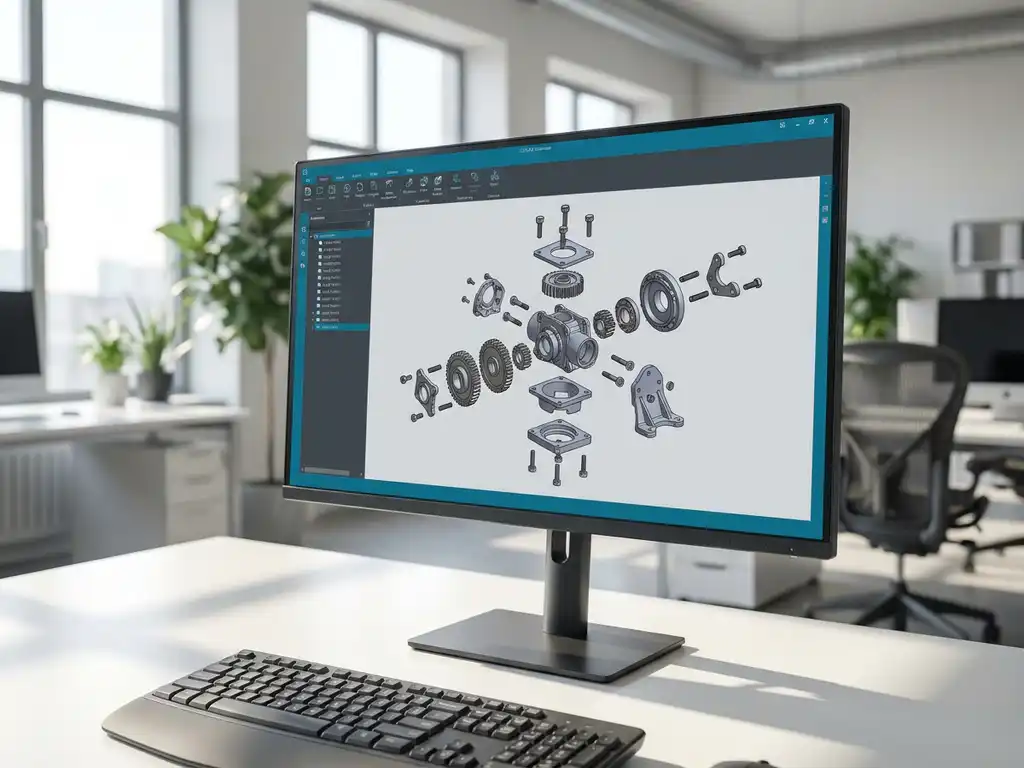
An assembly in 3D CAD software is a digital model consisting of multiple individual parts that make up a complete product. These parts, also called components, retain their individual properties while being positionally related to each other within the larger whole.
Assemblies work according to a hierarchical structure in which each component has its own geometry and properties. You can edit individual components without affecting other parts unless specific relationships are defined between them. This makes assemblies particularly powerful for complex products such as furniture, machinery or complete interior systems.
The great advantage of assemblies is that they reflect the actual product structure. For example, a cabinet consists of shelves, hinges, handles and fasteners. In an assembly, you can design each of these components separately and then assemble them into the final product.
How does an assembly work in CAD programs such as IronCAD?
Assemblies in CAD programs work through constraints and relationships that define the positions and orientations of components relative to each other. These constraints ensure that components remain properly connected to each other even when you make changes.
The operation of assemblies is based on a parent-child relationship system. When you add a component to an assembly, it is linked to a reference plane or another component. Changes in the parent component can automatically affect the child components, depending on the relationships set.
Modern CAD software offers different types of constraints, such as:
- Face-to-face joints for surface alignment
- Concentric constraints for centering cylindrical parts
- Parallel and perpendicular relationships for geometric alignment
- Distance constraints for defining specific gaps
These intelligent connections make it possible to simulate realistic movements and adjustments, which is essential for testing your design before it goes into production.
What are the advantages of working with assemblies?
Working with assemblies offers significant advantages for efficiency, accuracy and project management in your 3D drawing workflow. The biggest advantage is the ability to divide complex products into manageable parts that can be developed and tested separately.
The main benefits are:
Improved collaboration and project management
Assemblies allow multiple designers to work simultaneously on different parts of the same product. Each team member can focus on specific components without creating conflicts with the work of others.
Reusability of components
Once developed, parts can be reused in different assemblies. This saves development time and ensures consistency between different products. For example, a standard hinge can be used in multiple furniture designs.
Simple change management
When you make a change to an individual part, it is automatically applied to all assemblies in which this part is used. This prevents inconsistencies and significantly reduces the likelihood of errors.
Realistic simulations and testing
Assemblies allow you to test movements, interferences and fit before going to production. You can check that parts work together correctly and that there is enough room for assembly and maintenance.
What types of assemblies exist in 3D CAD?
There are several types of assemblies in 3D CAD software, each with specific uses and benefits. Choosing a particular type depends on the complexity of your product, the collaboration within your team and the specific requirements of your project.
Top-down assemblies
In top-down assemblies, you start by defining the general shape and dimensions of the final product. Then you divide this into smaller parts. This approach is ideal for products where overall form and function are paramount, such as furniture or complete interior systems.
Bottom-up assemblies
Bottom-up assemblies start by designing individual components, which are then assembled into the final product. This method works well when you already have existing components or when components can be reused in different products.
Hybrid assemblies
Many modern projects use a combination of both approaches. For example, you can start with a top-down design for the main structure and then work bottom-up for detailed components, such as fasteners or decorative elements.
Master Assemblies
For very complex products, you can use master assemblies made up of multiple subassemblies. This is similar to a modular structure where each subassembly has its own assembly, which is then integrated into the master product.
How do you start making your first assembly?
Creating your first assembly starts with a clear planning of your product and identifying the main components. Start by defining a reference structure and then add components step by step with appropriate constraints and relationships.
Follow these steps for a successful first assembly:
Step 1: Plan your product structure
Make a sketch or list of all the components your product will contain. Identify which parts are fixedly connected and which should be moving. Also determine which parts you want to model first.
Step 2: Define a reference structure
Create a basic reference system with planes and axes that serve as a starting point for all other components. This ensures consistency and makes it easier to make changes later.
Step 3: Add components with constraints
Start with the most important or largest component and then add other components. Use proper constraints to ensure that components remain correctly positioned as you make changes.
Step 4: Test and validate your assembly
Check that all parts fit correctly and that there are no unwanted interferences. Test moving parts to make sure they function as intended.
How IronCAD helps with assemblies
IronCAD makes working with assemblies particularly intuitive thanks to its unique drag-and-drop functionality and patented TriBall™ visualization tool. This innovative approach allows you to create assemblies quickly and flexibly, without the complexity of traditional CAD systems.
The main advantages of IronCAD for assembly work are:
- Intuitive drag-and-drop interface for quick positioning of components
- TriBall™ tool for easy repositioning and orientation of parts
- Flexible constraint systems that support both parametric and direct modeling
- Clear library of reusable components
- Automatic generation of saw lists and NC codes for direct production
Want to experience how IronCAD can improve your assembly workflow? Contact us for a personal demonstration and find out how this revolutionary CAD software can increase your productivity.