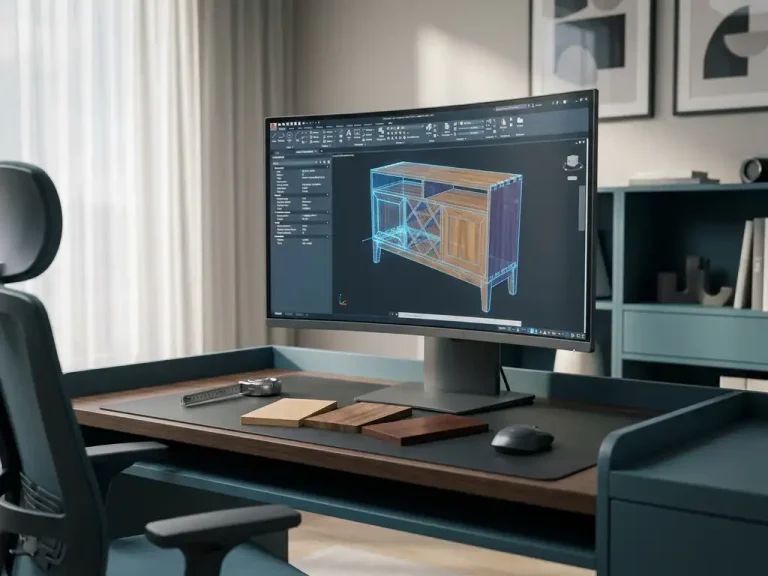

How do I create a parts list from a 3D model?
Creating a parts list from a 3D model is an essential step in the production process of any manufacturing company. A good parts list ensures that you know exactly what materials you need, in what quantities and with what specifications. This prevents costly mistakes during production and ensures an efficient workflow.
With modern CAD software, you can largely automate this process, saving time and drastically reducing the chance of errors. In this article, we explain step-by-step how to generate an accurate parts list from your 3D design.
What is a parts list and why do you need it in 3D design?
A parts list is a detailed listing of all the parts, materials and components needed to make a product, including exact quantities and specifications. In 3D drawing, the parts list is the bridge between your digital design and physical production.
The parts list contains crucial information, such as material types, dimensions, machining instructions and assembly information. For production planners, this document is indispensable for purchasing the right materials, scheduling machines and giving employees the right instructions. Without an accurate bill of materials, miscommunications quickly arise between the design phase and production.
In the manufacturing industry, a good bill of materials also ensures cost control. You know exactly how much material you need, can minimize waste and inform suppliers of required materials in a timely manner. This leads to shorter lead times and lower production costs.
How do you automatically generate a parts list from your CAD model?
You automatically generate a parts list by defining the properties of each part in your CAD software and then using the built-in reporting function. Most modern CAD programs can extract this information directly from your 3D model.
The process begins by assigning material data to each component in your 3D model. You do this by entering the appropriate material, thickness and other relevant specifications in each component’s properties. Make sure each component has a unique name that makes sense for manufacturing.
Then you use the reporting tools of your CAD software. These tools automatically scan your entire assembly and collect all defined properties. The result is a well-organized list of all required parts, their quantities and specifications. Most software also allows you to customize the parts list to your own company standards.
What information should you add to parts in your 3D model?
For a complete parts list, you must add to each part at least the material type, dimensions, thickness and a clear description. This basic information is the core of any useful parts list.
There are also additional features that facilitate production. Consider machining instructions such as cutting angles, drill holes or surface treatments. Supplier information can also be helpful, especially with standardized parts such as screws or hardware.
For more complex projects, you also add assembly information. This helps production workers understand how to assemble parts together. Use consistent naming for materials and operations so that your parts lists always have the same format and are easy to interpret.
What are the advantages of automated parts lists over manual lists?
Automated parts lists eliminate human error, save time and stay automatically synchronized with changes in your 3D model. Manual lists are error-prone and require constant updates with design changes.
The time advantage is significant. Where you spend hours manually going through each part and jotting down specifications, automated software does it in seconds. In addition, the list is automatically updated as you make changes to your design.
Accuracy is another big advantage. Automatic systems count exactly and do not forget parts. They also automatically calculate total quantities when parts occur multiple times in an assembly. This prevents material waste and ensures that you always have sufficient stock.
How do you export bills of materials to other systems such as ERP or manufacturing?
You export parts lists by using standard file formats such as CSV, Excel or XML, which are compatible with most ERP systems and manufacturing software. Most CAD programs offer direct export options to these formats.
For seamless integration, first configure the export settings according to the requirements of your target system. This means adjusting the column order, naming and data formats to what your ERP system expects. Many companies create templates for this purpose that they can use over and over again.
Advanced CAD systems also offer direct links to popular ERP packages. These real-time integrations ensure that changes to your design automatically flow through to your production planning system, further reducing the chance of miscommunication.
How IronCAD helps with parts list generation
IronCAD makes generating bills of materials from 3D models particularly easy thanks to integrated reporting tools and automatic material allocation. The software offers specific advantages for companies in the manufacturing industry:
- Automatic generation of saw lists and material summaries directly from your 3D model
- Intelligent material allocation where properties such as thickness and material type are automatically recognized
- Flexible export options to Excel, CSV and direct connection to ERP systems
- Real-time updates to bills of materials in the event of design changes
- Integrated plate optimization for minimal material wastage
With years of experience in the manufacturing industry, we understand that accurate bills of materials are crucial to your production process. Want to know how IronCAD can improve your workflow? Contact us for a personal demonstration of the possibilities.