
Customizing IronCAD keyboard shortcuts and setting the Radial Menu
IronCAD offers extensive options to tailor the software completely to your way of working. In addition to the standard hotkeys, you can create your own hotkeys, modify existing key combinations and set up the Radial Menu (Quick Commands) for a faster, clearer workflow.
Why customize keyboard shortcuts in IronCAD?
IronCAD is distinguished by a highly flexible customizable interface, allowing you to work more efficiently than with many other CAD systems.
Shortens commonly used operations
Work more consistently and intuitively
Reduce errors in repetitions
Speed in complex models
Customizing keyboard shortcuts in IronCAD
Virtually every function in IronCAD can be associated with its own key combination.
This is how you open the hotkey settings:
- Right-click on an empty part of the Ribbon-Bar
- Choose Customize Toolbars / Menu / Keyboard
- Go to the Keyboard tab
Best practice for own keyboard shortcuts
For an orderly and future-proof workflow:
- Use logical combinations (e.g., Ctrl + Shift + M)
- Maintain one set structure
- Avoid conflicts with Windows keyboard shortcuts
- Link letters to recognizable features
This keeps your keyboard shortcuts intuitive, even if you use IronCAD intensively.
The Radial Menu (Quick Commands) in IronCAD
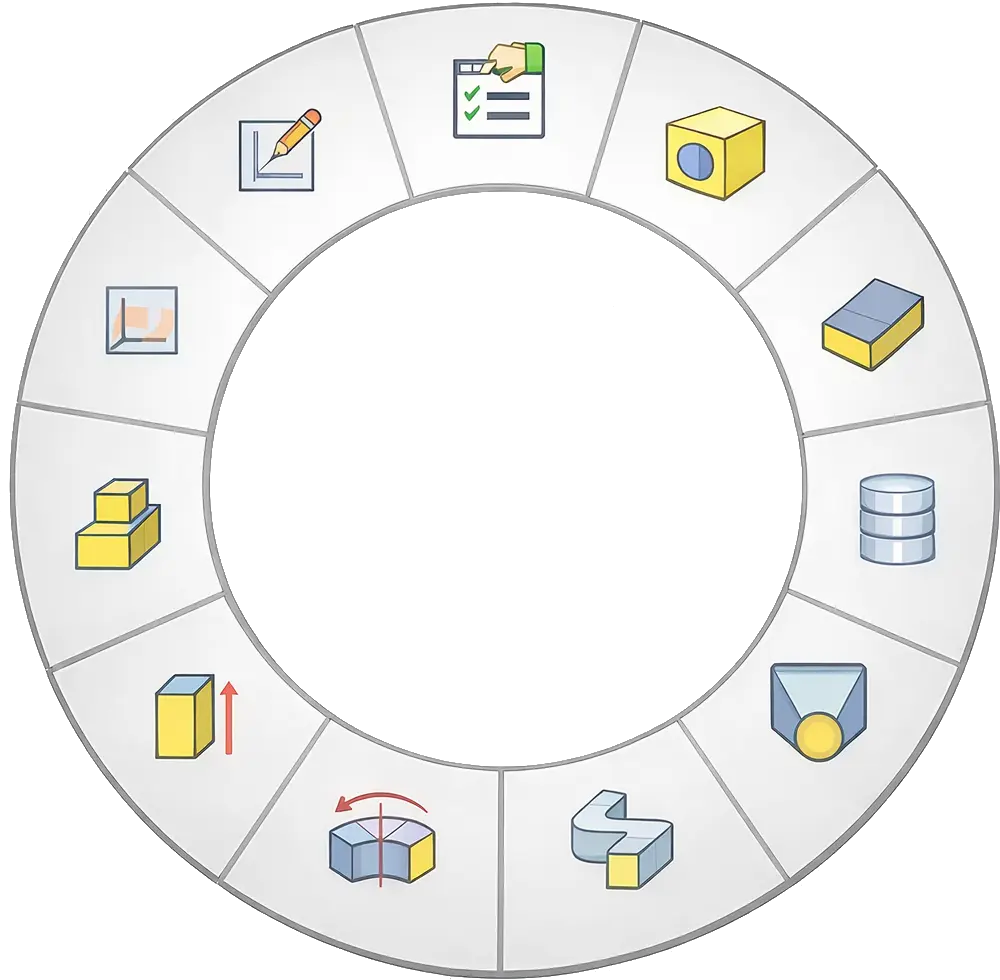
The Radial Menu is a circular shortcut menu that appears by default with the S key. The Radial Menu enables quick, visual choices without interrupting your workflow. This menu is ideal for frequently used commands, context-dependent actions and working with a mouse, pen or tablet.
Radial Menu setup and customization
- Open Customize Toolbars / Menu / Keyboard
- Go to the Quick Commands tab
- Drag and drop desired functions into the Radial Menu
You can fully customize the layout to:
- design phase
- type of model
- personal preference
IronCAD completely to your liking
By customizing keyboard shortcuts and using the Radial Menu intelligently, you can make IronCAD truly your own. This delivers immediate gains in speed, overview and consistency in your workflow.
First, do you want to know which keyboard shortcuts are available by default in IronCAD and which are most commonly used? Then read IronCAD keyboard shortcuts for working faster.