Faces to IntelliShape for imported models
Make imported CAD models fully editable again
Are you working with STEP, Parasolid or other CAD files from external systems? Then you often get a so-called B-rep model in IronCAD. The model looks good, but you miss the editable features.
With Faces to IntelliShape, you convert selected faces to real IronCAD IntelliShapes. This turns an imported CAD model back into a flexible and fully editable design.
What is Faces to IntelliShape?
The Faces to IntelliShape command converts selected faces of a solid model to an editable IntelliShape. This is especially valuable when editing imported CAD files in IronCAD.
After applying the function, you can:
- Adjust the extrude by pushing or pulling
- Using the right-click Edit Cross Section
- Changing the 2D profile
- Customizing the feature parametrically
How Faces to IntelliShape helps in IronCAD
Faces to IntelliShape makes it easier to modify imported models and make design changes faster. Key benefits:
Making CAD models editable
Simple from B-rep to IntelliShape
Make changes faster
Easily edit cross section
Reduced time loss when importing
No manual reconstruction
More control over your model
Clear and flexible structure
Why is this important with imported models?
When a part is built completely in IronCAD, it consists of individual IntelliShapes. You can easily select and modify these. An imported model often lacks that feature structure. The model usually consists of one combined solid without individual shapes. Faces to IntelliShape offers the solution here.
How do you use Faces to IntelliShape?
Applying the feature is simple:
- Select a plane on the model
- Click on Faces to IntelliShape
- IronCAD recognizes the shape and automatically creates a new IntelliShape
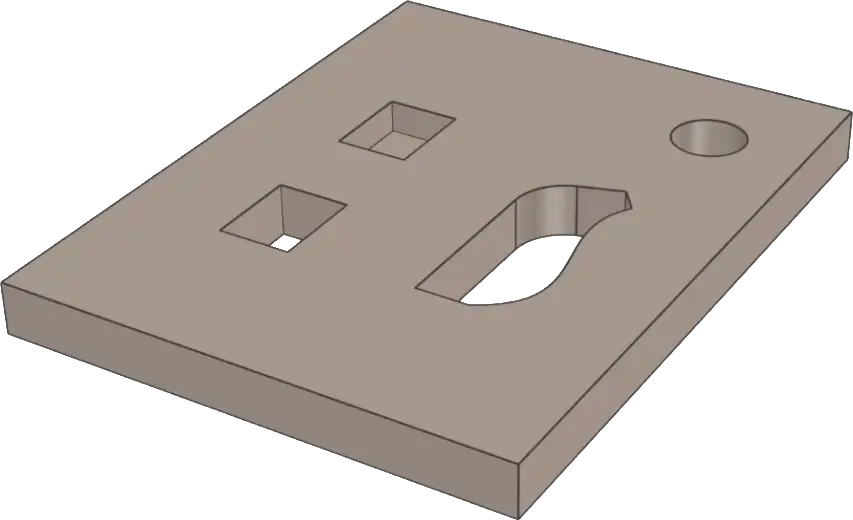
Adjusting partial cutouts
For cutouts that do not run completely through the model, you often need to select an additional plane, such as a plane from the base.
Once IronCAD has enough information to determine the depth, the command becomes available and you can create the IntelliShape.
Selecting multiple surfaces
For rectangular or more complex shapes, you can select multiple faces at once by holding down the Shift key.
The Faces to IntelliShape command becomes active only when the selection is valid. Sometimes you need to select an additional face before IronCAD correctly recognizes the extrude.
Want to learn more about IronCAD?
With Faces to IntelliShape in IronCAD, you turn an imported CAD model back into a smart and flexible design. You convert existing faces to editable IntelliShapes and avoid having to completely rebuild a model.
Visit the IronCAD Academy for training, tutorials and additional explanations of features such as Faces to IntelliShape, direct editing, IntelliShapes and more.