
IronCAD keyboard shortcuts
Practical IronCAD hotkeys for maximum productivity in 3D design
Anyone who wants to work efficiently in IronCAD cannot avoid hotkeys. By controlling frequently used functions directly from the keyboard, you work faster, more consistently and with fewer interruptions. Especially with complex 3D models and assemblies, this saves a considerable amount of time.
In this guide, you’ll find an overview of the most important IronCAD keyboard shortcuts, learn how to customize them yourself, and discover how to easily reset them if they no longer work correctly.
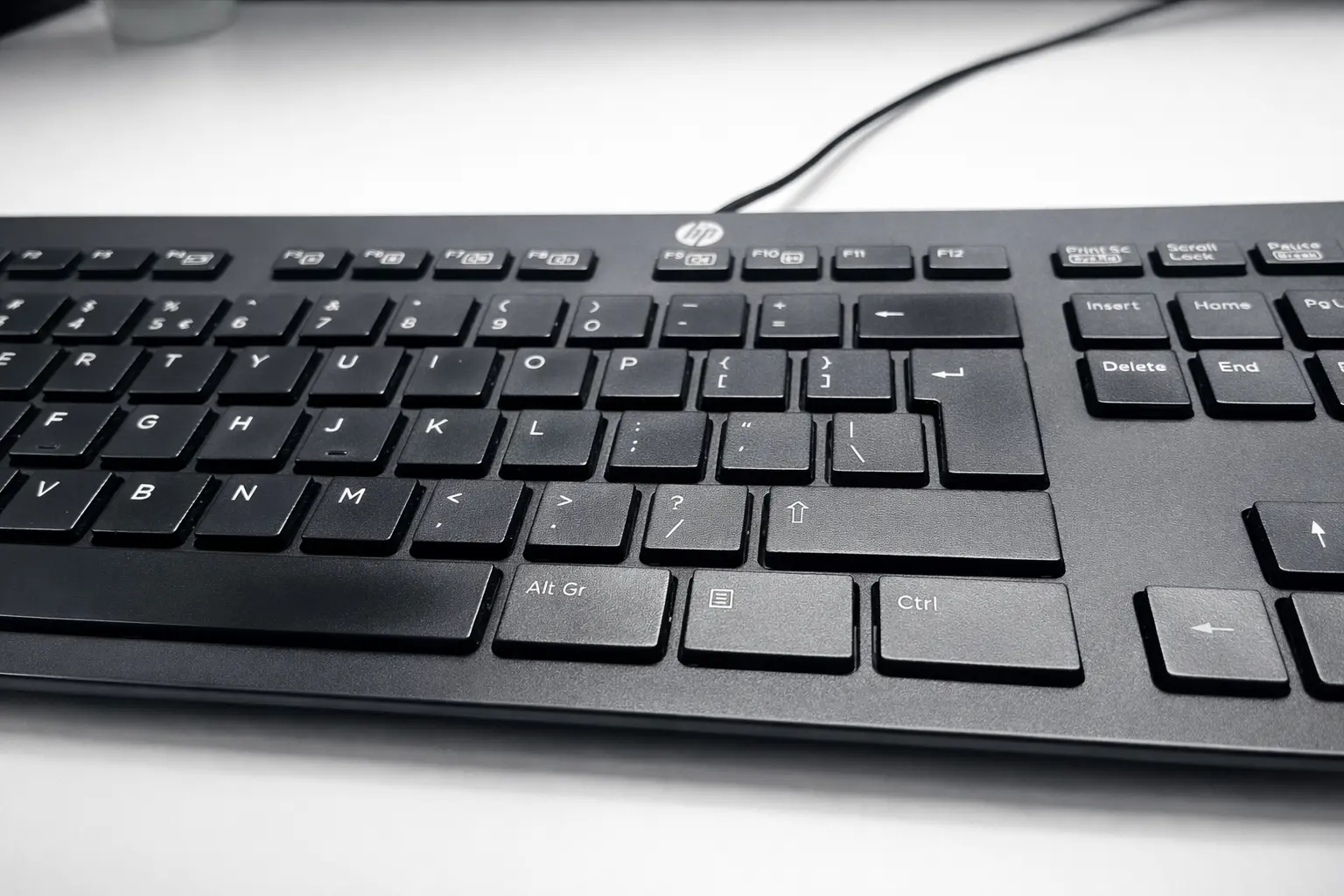
What are keyboard shortcuts in IronCAD?
Hotkeys are key combinations that give you instant access to functions without clicking through menus or ribbons. In IronCAD, these Hotkeys are automatically displayed upon mouse-over of buttons in the interface, allowing you to quickly learn to recognize and remember them.
Why work with keyboard shortcuts in IronCAD?
Less mouse movement
Faster modeling and editing
Consistent workflows
More focus on design
Featured
| Tilde (~) + Left mouse button | Select the lowest lying Assembly in the Scene |
| C | Show Catalog Favorites (IronCAD 2025) |
File management and interface
| Ctrl + Shift | Switching between ribbon and toolbar layout |
| Ctrl + Shift + R | Toolbars on or off |
| Ctrl + N | Open new document |
| Ctrl + O | Open existing document |
| Ctrl + S | Save document |
| Ctrl + P | |
| Ctrl + Z | Undo operation |
| Ctrl + Y | Redo operation |
| Ctrl + X | Cut |
| Ctrl + C | Copy |
| Ctrl + V | Paste |
| Ctrl + A | Select All |
| Delete | Delete |
Advanced selection
These keyboard shortcuts are especially useful for larger assemblies and speed up selection considerably.
| Ctrl + Left mouse button | Directly select a Part in the scene |
| Ctrl + Shift + Left mouse button | Selecting multiple Parts at once |
| Alt + Left mouse button | Select IntelliShape or Feature |
| Alt + Shift + Left mouse button | Select multiple Features |
Camera and view
| F2 or Shift + Scroll wheel | Pan (move) |
| F3 or Scroll wheel pressed | Rotate object |
| Rotate scroll wheel | Zoom in and out |
| F5 or Ctrl + Scroll wheel | Stepless zooming |
| F7 or W | Looking perpendicular to a plane |
| F8, D or Double-click Scroll Wheel | Zoom to full model |
| F9 | Perspective on/off |
| Ctrl + F2 | Walk mode (at fixed height) |
| Ctrl + F5 | Window-zoom |
| Ctrl + F7 | Target: center selected point |
| I | Isometric view |
Working with the TriBall
The TriBall is one of the most powerful tools in IronCAD; with these keyboard shortcuts, you’ll get maximum benefit from it.
| Q or F10 | Turning TriBall on or off |
| Spacebar | TriBall attach or detach (white/blue) |
| Alt (when moving/rotating) | Working with fixed increments (Snap Increments) |
| Ctrl + Alt | Rotation in steps relative to the Part |
| Ctrl + Shift | Rotation in steps relative to the Scene |
Manage components quickly in the Scene Browser
| Alt + * | Open all |
| Alt + – | Collapse all |
| Alt + + | Expand upper level only |
| Ctrl + B | Open selected item in Scene Browser |
| Tilde (~) + Left mouse button | Select lowest lying Assembly |
Getting more out of IronCAD keyboard shortcuts?
In addition to the standard hotkeys, IronCAD offers extensive options for creating your own hotkeys, setting up the Radial Menu (Quick Commands), and customizing hotkeys completely to suit your personal workflow.
Learn more about how to create or modify keyboard shortcuts yourself and how the Radial Menu works.