How do I export a 3D drawing to PDF?
Exporting a 3D drawing to PDF is an essential function for anyone working with CAD software. Whether you want to share technical drawings with colleagues, create documentation for production, or simply back up your design, a PDF export ensures that your 3D drawings can be viewed anywhere without special software.
In this article, we answer the most frequently asked questions about exporting 3D drawings to PDF. We cover not only the technical steps, but also the best settings for optimal quality and solutions to common problems.
Why export a 3D drawing to PDF?
Exporting a 3D drawing to PDF ensures universal accessibility, easy documentation and a professional presentation of your designs. PDF files can be opened by anyone without special CAD software and preserve the visual quality of your engineering drawings.
The main benefits of PDF export are multifaceted. First, you can share your designs with customers, suppliers and colleagues who do not have access to CAD software. This makes communication on projects much easier and avoids misunderstandings about specifications.
In addition, PDF files are ideal for archiving and documentation. They retain their formatting regardless of the device or operating system on which they are viewed. For production purposes, you can send technical drawings as PDFs to the workshop, where employees can access them on tablets or computers without the need to access expensive CAD licenses.
What information is retained when PDF is exported?
PDF export of 3D drawings fully preserves all 2D projections, dimensions, annotations and technical specifications. Colors, line styles and text formatting are also accurately exported, making the PDF an exact representation of your original drawing.
The exported PDF contains all essential technical information required for production. This includes dimensioning, tolerances, material designations and assembly instructions. Symbols and standard CAD notations are also displayed correctly.
What is lost with PDF export, however, is the 3D interactivity. You can no longer rotate the model, zoom in on specific parts or turn layers on and off as in the original CAD software. The PDF shows static views of your 3D model, usually in the form of technical projections such as top view, side view and isometric views.
How do you export a 3D drawing to PDF in IronCAD?
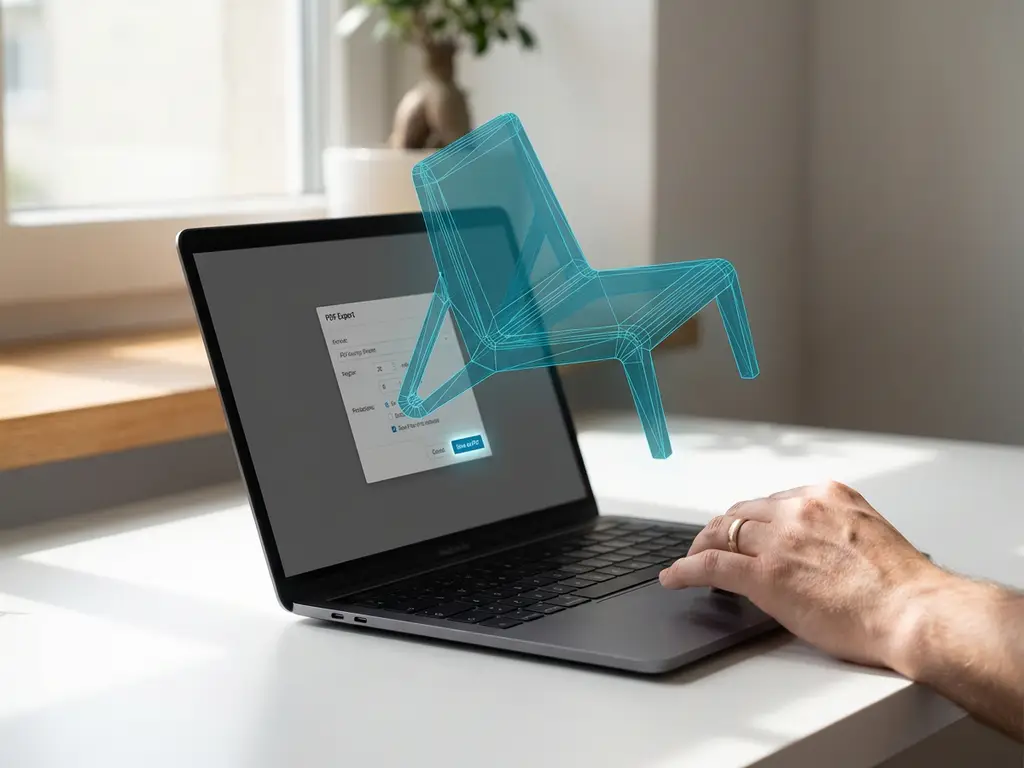
In IronCAD, you export a 3D drawing to PDF by going to the File menu, selecting “Export,” and then choosing “PDF” as the file type. You can then select the desired views and adjust export settings before generating the PDF.
The export process consists of several steps that give you complete control over the final result. Start by opening your 3D model and making sure all desired views are set correctly. These can be technical projections such as top view, front view and side view, or isometric views showing the 3D shape of your design.
Then in the export window, select which sheets or views you want to include in the PDF. You can choose individual views or export all sheets at once. The software also provides options for setting the page size, orientation and scale factor of your drawings.
What settings do you use for the best PDF quality?
For optimal PDF quality, set the resolution to at least 300 dpi, use vector-based exports whenever possible, and choose high-quality color reproduction. These settings will ensure sharp lines, legible text and accurate colors in your exported PDF.
The resolution setting is crucial to the readability of your technical drawings. For professional documentation, 300 dpi is the minimum standard, but for very detailed drawings, consider 600 dpi. Keep in mind that higher resolutions result in larger file sizes.
Always choose vector-based export when possible, as this results in scalable images that remain sharp at any zoom level. For color reproduction, select RGB for digital reproduction or CMYK if the PDF is intended for professional printing. Also, make sure fonts are embedded correctly to ensure correct text display on all devices.
What do you do if the PDF export doesn’t work as expected?
If the PDF export is not working correctly, first check that all views are set correctly in your CAD software, verify the export settings and make sure there is enough memory available. Often it also helps to split the export into smaller parts or choose a different file location.
Common problems are missing elements in the PDF, incorrect scaling or quality loss. Check that all layers are visible before exporting and that you have set the correct scaling factor. Sometimes complex 3D models can cause problems due to their size or complexity.
If the export freezes or crashes, try splitting the export into several smaller PDF files. You can merge these later with PDF software. Also check that your CAD software is up-to-date and that there is enough disk space available for temporary files during the export process.
How IronCAD helps with PDF export of 3D drawings
IronCAD offers a streamlined PDF export feature designed specifically for efficient documentation of 3D designs. The software makes exporting engineering drawings to PDF easy and reliable.
With IronCAD, you benefit from:
- An intuitive export wizard that guides you step by step through the process
- Automatic optimization of line weights and text sizes for PDF viewing
- Batch export functionality for processing multiple drawings simultaneously
- Preset templates for different PDF formats and quality levels
- Direct integration with your 3D design process without cumbersome conversions
Want to experience for yourself how easy PDF export can be with professional CAD software? Contact us for a personal demonstration of IronCAD’s capabilities for your specific 3D drawing projects.