How to create a furniture construction drawing with part numbering in CAD?
You create a furniture structural drawing with part numbering by first creating your 3D design in CAD software, then applying a systematic numbering system to all parts and finally generating technical drawings with dimensions, material specifications and production instructions. This process requires the right CAD software and a structured approach. If you have any questions about optimizing your construction drawings, please feel free to contact us.
Unclear part numbering causes costly production errors
Without systematic part numbering, miscommunications occur between design and production. Workers grab the wrong materials, cut parts in the wrong sizes or assemble components in the wrong place. These errors lead to material waste, extra machining time and customer complaints. Clear part numbering prevents these problems by making each part uniquely identifiable and keeping production instructions unambiguous.
Manual bills of materials cost you hours of valuable time
Manually preparing cut lists and parts lists based on construction drawings is time-consuming and error-prone. You have to measure each part separately, note material types and calculate quantities. This process can take hours for complex furniture and often contains calculation errors that are only discovered during production. Automatic generation from your CAD drawing eliminates this waste of time and provides error-free lists that are immediately usable in production.
What is a furniture construction drawing and why do you need part numbering?
A furniture construction drawing is an engineering drawing that shows all the parts, dimensions and connections of a piece of furniture. Part numbering is necessary to uniquely identify each component, prevent manufacturing errors and ensure clear communication between design and production.
The construction drawing is the bridge between your creative design and actual production. Without clear numbering, misunderstandings arise: which panel belongs where, what dimensions are correct and in what order should the parts be machined? Systematic numbering solves these problems by giving each part a unique code.
For interior construction, this is especially important because furniture is often custom-made with unique dimensions and specifications. Proper part numbering includes information on material type, thickness, dimensions and position in the final product, virtually eliminating manufacturing errors.
Which CAD software is best for furniture construction drawings?
For furniture construction drawings, the best software is one that combines intuitive 3D design with automatic 2D drawing generation and integrated parts list functionality. The software should be specifically suited for woodworking and furniture manufacturing, with support for material specifications and joining elements.
The ideal CAD software for furniture has several crucial features. First, you need to be able to design quickly and flexibly without technical obstacles. Many traditional CAD programs are designed for metalworking and lack specific features for wood joints, edge finishing and sheet materials.
In addition, automatic document generation is essential. You don’t want to manually create all the drawings and lists. The software must be able to generate production-ready drawings, cut lists and NC codes directly from your 3D model. For companies in kitchen construction, for example, this is crucial because of the complexity and dimensions of kitchen cabinets.
How do you set up systematic part numbering in CAD?
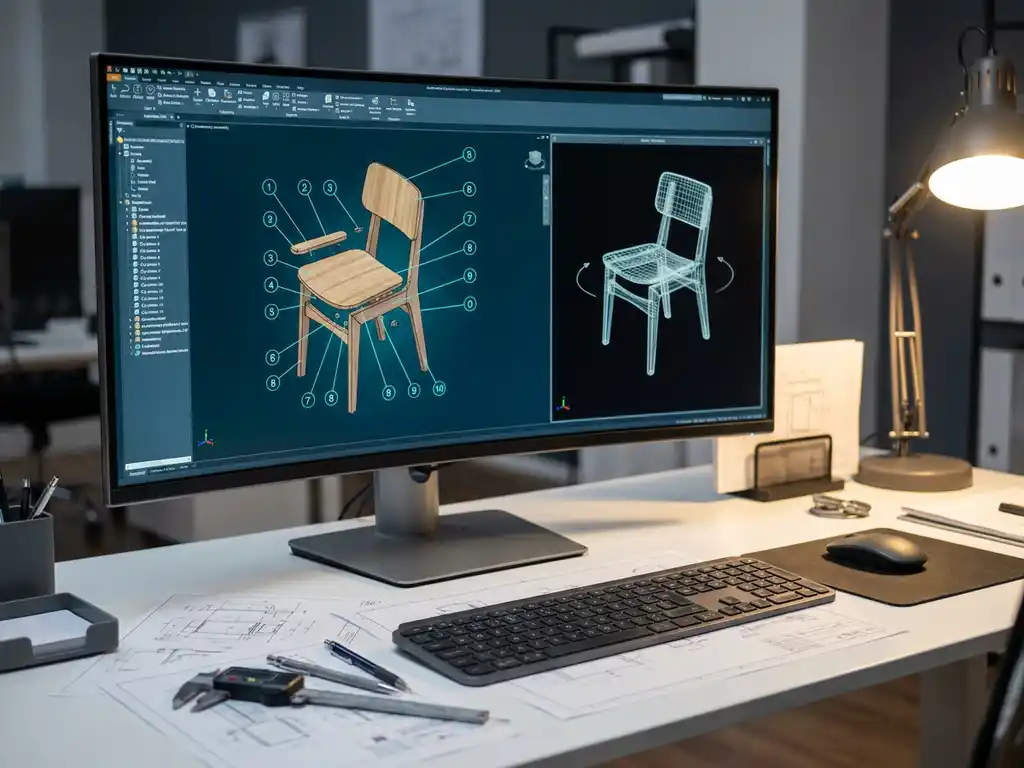
You establish systematic part numbering by first defining a logical structure (e.g., project-part-material), then assigning consistent codes to material types and thicknesses, and finally setting up automatic numbering in your CAD software so that each new part is immediately given the correct code.
Start by defining your numbering logic. A common method is: project-number-part-type-following-number. For example: K2024001-P01 for the first panel of kitchen project 2024001. This system makes parts instantly recognizable and avoids confusion between different projects.
Material codes are a second important layer. For example, use P for panels, L for battens, B for fittings and V for connecting elements. Add thickness designations: P18 for an 18 mm panel, P25 for a 25 mm panel. This system helps not only with production, but also with purchasing and inventory management.
Set up automatic numbering rules in your CAD software. Modern software can automatically number parts based on properties such as material, thickness and function. This prevents manual errors and ensures consistency across all projects.
What information should be on a professional furniture construction drawing?
A professional furniture construction drawing should include part numbers, exact dimensions, material specifications, joint details, edge details and production instructions. Tolerances, scale and a clear legend are also essential for error-free production.
Basic information includes dimensions in three dimensions for each part, material type and thickness, and position in the finished product. Use clear dimension lines and place dimensions so that they do not overlap or cause confusion. Always display the most important dimensions first.
Connection details are crucial for correct assembly. Show where screws, bolts or glue joints will go, with specifications for hole diameter and depth. For complex joints, create detail drawings on a larger scale. This is especially important in mechanical engineering applications, where precision is critical.
Include production instructions, such as machining sequence, edge finishing and quality checks. Also include tolerances: what deviations are acceptable and where is extra precision required? A good legend explains all the symbols and abbreviations you use.
How do you automatically generate parts lists and saw lists from your CAD drawing?
You generate automatic parts lists and saw lists by assigning material properties to each part in your CAD software, then using report functions that extract and sort this data by material type, thickness and dimensions. The software automatically calculates quantities and optimizes cutting patterns.
The process begins with correctly defining material properties in your 3D model. Assign to each part: material type, thickness, dimensions, edge finish and any machining. This information is stored in the part’s properties and is the basis for all automatic reports.
Modern CAD software can automatically sort and group this data. Saw lists are organized by sheet thickness and material type so you can cut efficiently. The software can also apply plate optimization: it calculates how best to arrange parts by standard plate sizes to minimize material waste.
For metalworking, similar functions are available for profiles and sheets. The software generates not only saw lists, but also machining instructions and NC codes for automated machines, further optimizing production.
How do you make sure your construction drawings are production-ready?
Get construction drawings ready for production by checking all dimensions for consistency, verifying material specifications with suppliers, checking connection details for feasibility, and having the drawings reviewed by experienced production specialists before releasing them for fabrication.
Start by systematically checking all dimensions. Check that outside dimensions match the sum of inside dimensions plus material thickness. Verify that all holes and cutouts are in the correct positions and that there are no conflicts between different parts. Use the checking capabilities of your CAD software to detect interferences automatically.
Test the feasibility of connections and operations. Can all holes be drilled with standard tools? Are all corners accessible for assembly? Are the tolerances realistic for your production equipment? These practical aspects determine whether your design is actually manufacturable without problems.
Organize a review with production specialists before releasing the drawings. They often see practical problems that are overlooked at the design stage. A good review saves costly adjustments and production disruptions later.
How IronCAD helps with furniture construction drawings
IronCAD offers a complete furniture construction drawing solution with intuitive 3D design tools, automatic part numbering and integrated parts list generation. Specifically suited for the furniture industry, the software automatically generates all necessary production documents from your 3D design.
With IronCAD, you work through more efficiently:
- Fast 3D design tools with no technical obstacles in your creative process
- Automatic generation of 2D structural drawings from your 3D model
- Integrated part numbering that works consistently across all projects
- Direct export of saw lists, parts lists and NC codes for production
- Plate optimization that minimizes material waste
The software integrates seamlessly with modern manufacturing processes and helps you from design to finished product. Whether you’re working on barn design projects or custom furniture, IronCAD optimizes your workflow and increases the quality of your construction drawings. Want to see how IronCAD can improve your design process? Then contact us for a personal demonstration.