Setting up Scene Browser filters in IronCAD
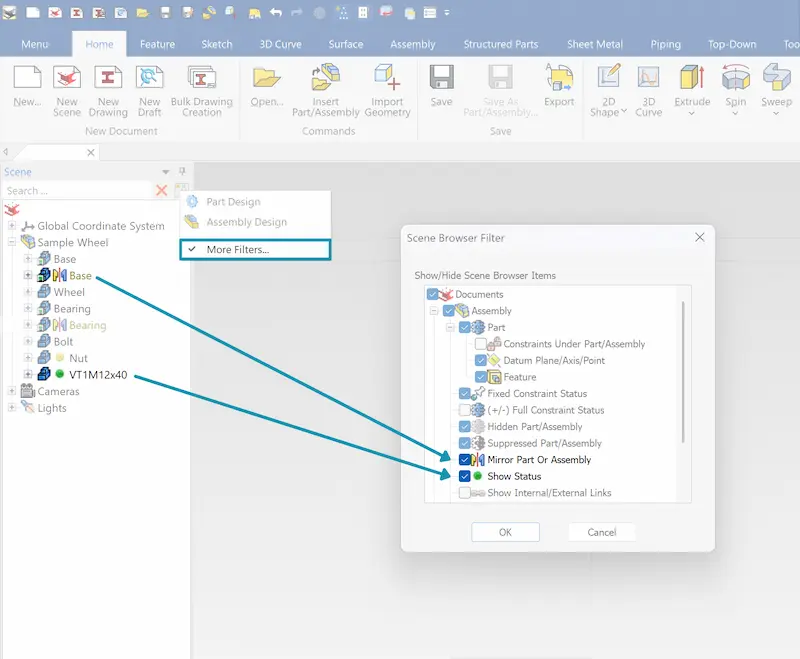
In the Scene Browser, you can see the full structure of your 3D model. By cleverly setting filters, you can display additional information with icons, such as mirrored parts or statuses. This helps you gain insight into your design faster.
More overview with icons in the Scene Browser
In IronCAD, you can visually mark parts with icons. Think of mirrored parts (mirror parts) or the status of a part. This makes it easier to check complex assemblies and avoid errors.
Here’s how to set Scene Browser filters
Follow these steps:
- Right-click in the Scene Browser
- Choose More Filters
- Select the desired options, such as:
- Mirror Part or Assembly
- Show Status
- Click OK to apply the settings
Ready to work smarter in IronCAD?
With the right settings, you’ll get more overview and efficiency out of your design. Find out how IronCAD can improve your workflow.