How do I ensure that my bill of materials is updated automatically when I make a change?
A bill of materials that updates automatically after a design change is possible when your CAD software uses what is known as an associative link between the 3D model and the corresponding documentation. As soon as you modify a part, the system recognizes that change and immediately updates the bill of materials, without requiring any manual intervention. This only works if your software is configured from the outset to support that bidirectional link between the model and the output.
In this article, we answer the most frequently asked questions about automatically updating bills of materials, ranging from the causes of manual work to the output that continues to update automatically.
Why isn’t a bill of materials automatically updated when a design change is made?
A bill of materials is not automatically updated if there is no direct link between the 3D model and the bill of materials in your CAD environment. In traditional CAD systems, the design and the associated documentation are two separate files that you must synchronize manually. Any change to the model then requires a manual update of the bill of materials, which is error-prone and time-consuming.
The root of the problem lies in the architecture of older CAD software. Many systems were historically built around a rigid design tree in which parts, assemblies, and drawings are linked to one another, but where that link becomes fragile as soon as you work outside the fixed sequence. A change made midway through the design can break the link, causing the bill of materials to continue displaying outdated information.
File management also plays a role. If parts are stored in separate files and someone moves, renames, or modifies a file outside the system, the bill of materials loses its reference. As a result, production teams often work with bills of materials that do not match the current drawings, leading to errors in procurement, production, and planning.
What is an associative bill of materials in CAD software?
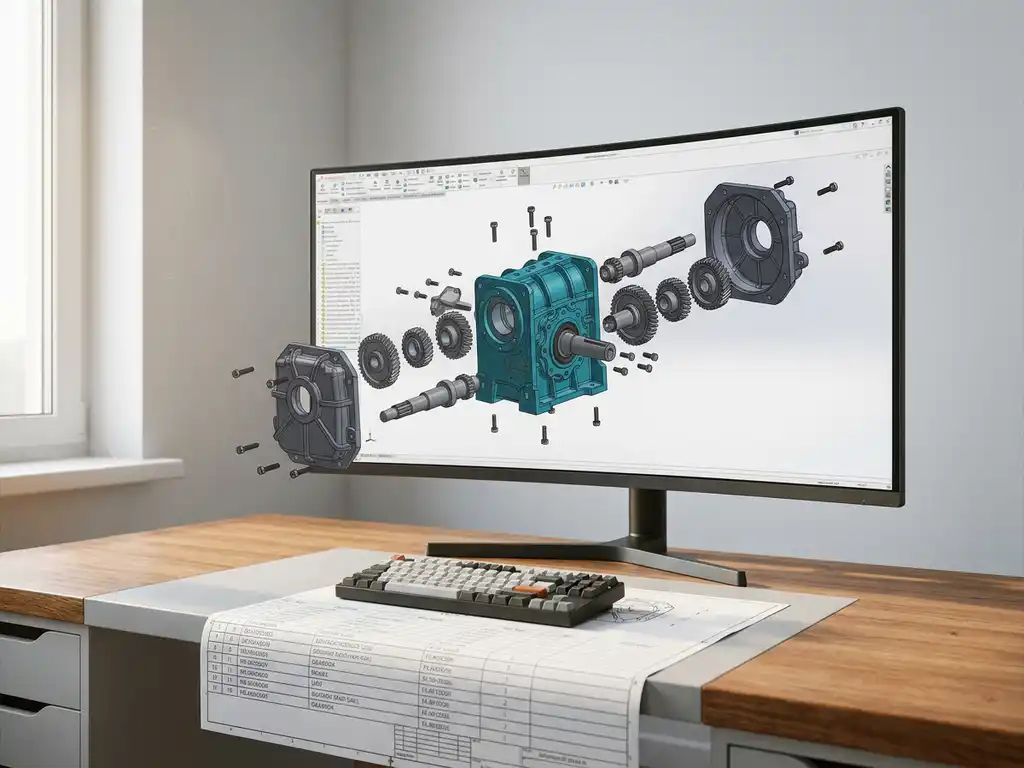
An associative bill of materials is a bill of materials that is dynamically linked to the 3D model from which it was generated. Any change to the model—whether it’s a modified dimension, a replaced part, or an adjusted quantity—is automatically reflected in the bill of materials without manual intervention. The bill of materials is therefore always a direct representation of the current design status.
The difference from a static bill of materials is fundamental. A static bill of materials is essentially a snapshot: a momentary representation of the design at the exact moment you export the list. As soon as the design changes, that snapshot is no longer accurate. An associative bill of materials is not a snapshot but a living document that evolves along with the model.
In practice, this means that the bill of materials not only tracks quantities and material types, but also properties such as dimensions, weights, and part numbers, which are read directly from the model. As soon as you increase the thickness of a plate or replace a profile, the bill of materials automatically updates those values. This makes the bill of materials a reliable basis for procurement, production, and cost estimation.
How does IronCAD ensure that bills of materials automatically update to reflect changes?
IronCAD uses a fully associative structure in which any change to the 3D model is immediately reflected in all linked output, including the bill of materials. Because IronCAD uses an innovative scene-based approach instead of a rigid history tree, the linkage remains intact even when you make changes at an advanced stage of the design process. You never have to manually update the bill of materials.
The power lies in the way IronCAD manages parts and assemblies. Each part has its own properties, and those properties are read directly by the bill of materials function. If you add a part, remove one, or adjust a dimension, the bill of materials updates in real time. This applies to both individual parts and complex assemblies with multiple levels.
Explore IronCAD’s capabilities to see how it works in practice for your production environment.
What other output is automatically generated in addition to the bill of materials?
In addition to the bill of materials, modern CAD software automatically generates a range of supplementary manufacturing documents as soon as the model is complete or updated. These include cutting lists, parts lists, sheet metal optimization, and NC codes for CNC machines. All of this output is derived directly from the same 3D model, ensuring consistency across all documents.
The automatically generated output typically includes:
- Cutting lists: an overview of all parts to be cut, with exact dimensions, ready for immediate use on the shop floor
- Purchasing lists: a structured list of required materials and components, ready for use by the purchasing department
- Sheet optimization: automatic calculation of the most efficient way to cut parts from a sheet, which minimizes material waste
- NC codes: machine codes that can be sent directly to CNC equipment without manual conversion
- Reports and working drawings: technical documentation for production, assembly, and quality control
The advantage of integrated output is that you don’t have to check each document individually to make sure everything is still correct after a change. Because all documents are generated from the same model, they are, by definition, consistent with one another. This significantly speeds up the process from design to production and reduces the risk of errors caused by version differences.
When is a manual review of the bill of materials still necessary?
Even with a fully associative bill of materials, manual verification remains useful in situations where external information comes into play that the system cannot automatically verify. Examples include supplier changes, obsolete part numbers, or material availability. The software tracks the design, but not the reality outside the model.
Specific situations in which you always want to review the bill of materials manually:
- When using purchased standard parts whose specifications have been modified by a supplier
- When part numbers have been updated in your ERP system and the link to the CAD model has not yet been updated
- For projects that include customer-specific requirements that are not fully modeled in the model but do belong in the bill of materials
- Prior to a large production order, as a final check before materials are ordered
Automation takes over the repetitive work, but technical responsibility remains with the engineer or designer. A well-structured training course in CAD software helps you understand which checks you can automate and which ones always require human attention. This way, you can get the most out of your software without blindly relying on automated processes.
How IronCAD Helps You Automatically Update Your Bill of Materials
IronCAD is specifically designed to provide a structural solution to the problem of outdated bills of materials. Thanks to its associative model structure and integrated output generation, you always work with up-to-date, reliable documentation. Here’s what IronCAD does for you, in concrete terms:
- Parts lists are automatically updated as soon as you make a change to the 3D model
- Cutting lists, material lists, sheet optimization, and NC codes are generated directly from the same model
- The scene-based approach allows for changes at any stage of the design process without breaking any links
- Integration with ERP systems ensures a seamless transition from design to procurement and production
- The software is easy to learn, so your team will be up and running in no time
Would you like to see how IronCAD works in practice for your production environment? Contact us for a no-obligation demo and discover how automatic bill of materials updates can benefit your workflow.