How do I present a machine design to a customer before production?
You can show a machine design to a customer before production by using 3D renders, animations, or interactive 3D models generated directly from your CAD software. These visual methods give the customer a realistic impression of the final product without the need to create a physical prototype just yet. In this article, we answer the most frequently asked questions about presenting machine designs to customers.
What methods are available for visualizing a machine design?
There are four commonly used methods for visualizing a machine design: static 3D renders, 3D animations, interactive 3D models, and technical 2D drawings. Each method has its own application, depending on the complexity of the design, the customer’s technical knowledge, and the purpose of the presentation.
For most mechanical engineering projects, a combination of methods yields the best results. A static rendering quickly provides a visual impression, while an animation clarifies moving parts and operating principles. An interactive 3D model allows the customer to explore the design on their own, which enhances understanding and builds trust. Technical drawings remain indispensable for the production department, but are often difficult for a customer without a technical background to interpret.
- Static 3D render: quick to create, suitable for quotes and initial presentations
- 3D animation: ideal for demonstrating moving parts and operating principles
- Interactive 3D model: Customers can explore it on their own without CAD software
- 2D technical drawings: essential for production, but less suitable for customer presentations
What is the difference between a 3D render and a 3D animation?
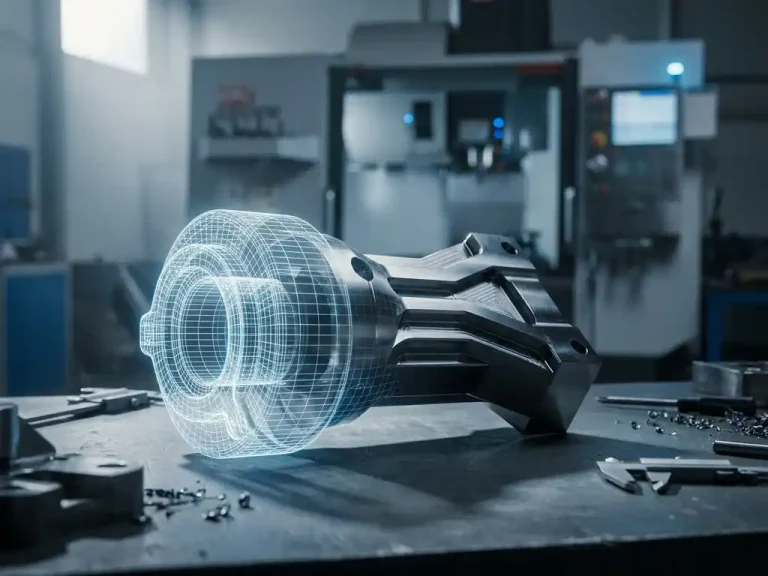
A 3D render is a still, photorealistic image of a machine design, while a 3D animation is a moving video that shows how parts move, interact, or are assembled. The main difference lies in the time dimension: a render shows a single moment, while an animation shows a process.
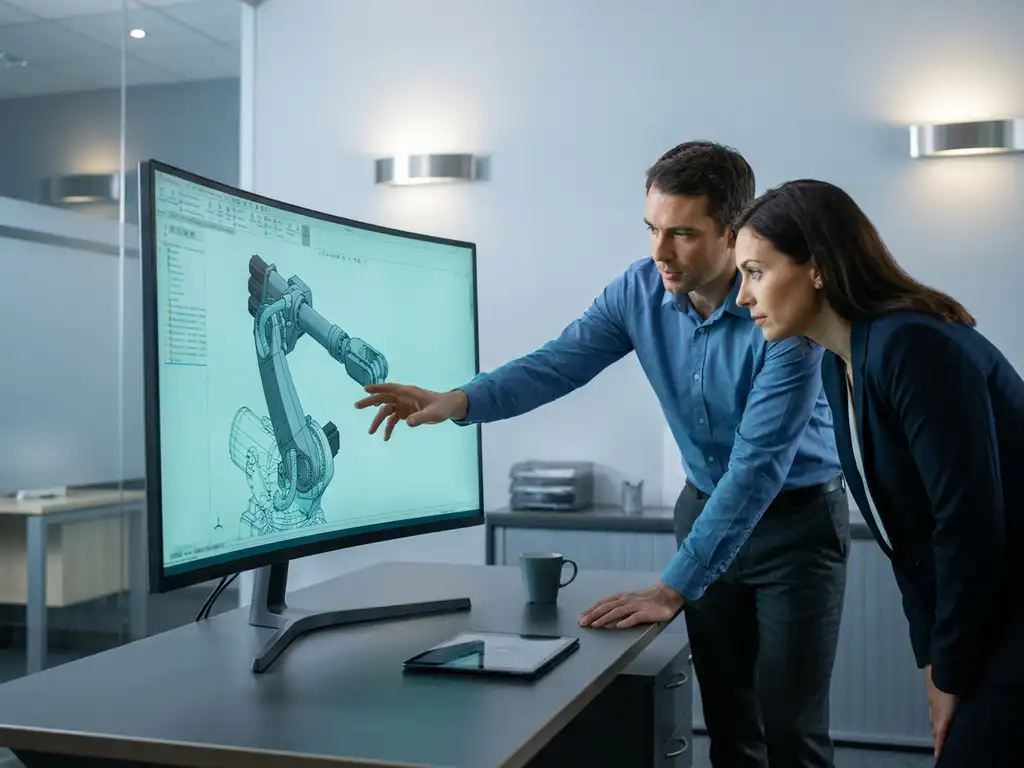
For an initial client presentation, a render is often perfectly sufficient. You show what the machine looks like, what materials were used, and the proportions. An animation adds an extra layer to that: you can demonstrate how a flap opens, how a conveyor belt moves, or how a robotic arm performs a movement. This is especially valuable for complex machines where the functionality isn’t immediately apparent from their appearance.
The time required also varies. A render can usually be produced more quickly, while an animation requires more preparation and processing time. Weigh the added value for the client against the available time and the project budget.
How do you create a 3D presentation of a machine in CAD software?
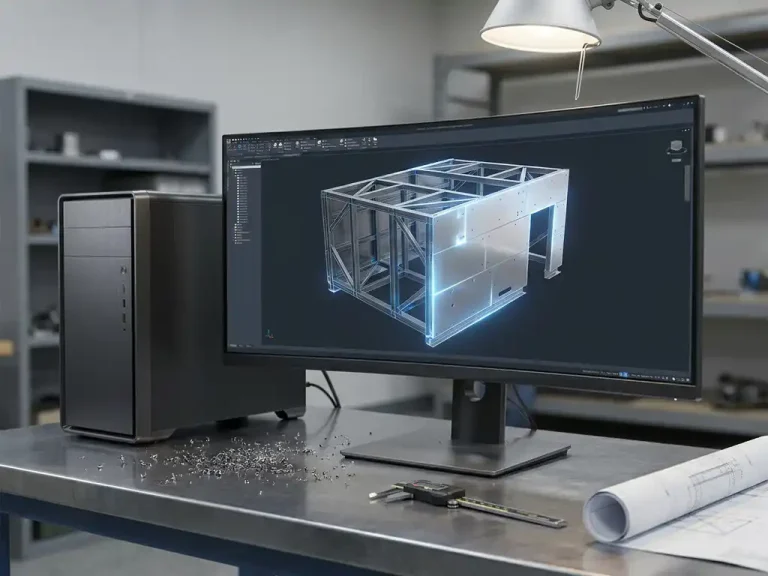
You can create a 3D presentation of a machine in CAD software by generating a rendering or animation from your existing 3D model, without having to rebuild the design. Good CAD software allows you to switch directly from the design environment to presentation mode.
In most cases, the steps are as follows:
- Make sure the 3D model is complete and correctly assembled, including all assemblies and parts.
- Set the camera to a logical angle that clearly shows the machine.
- Use materials and colors that match reality or the client’s brand guidelines.
- Generate a render for a still image, or set up an animation sequence for moving elements.
- Export the result as an image, video, or interactive file that you can share.
The advantage of working from your CAD model is that the presentation always matches the actual design. There is no risk of discrepancies between what you show and what you produce.
Can a customer view a 3D machine model on their own without CAD software?
Yes, a customer can view a 3D machine model on their own without CAD software, provided you export the model to a compatible format such as PDF 3D, a STEP viewer, or a web-based 3D viewer. This gives the customer the freedom to explore the model on their own, zoom in, and view the design from all angles.
There are several lightweight formats and free viewers available that allow customers to open a 3D model on their computer or tablet. For example:
- PDF 3D: Can be opened in Adobe Reader; the customer can rotate and zoom in
- Web-based viewer: The customer opens a link in the browser; no installation is required
- STEP or STL with a free viewer: suitable for customers with some technical background
Sharing an interactive model lowers the barrier to providing feedback. Clients who can explore the design on their own ask more specific questions and provide more concrete approval. This saves time in communication and reduces the likelihood of misunderstandings.
When is a machine animation better than a technical drawing?
A machine animation is better than a technical drawing when you want to convince a customer without a technical background, when the machine’s operation is the main focus, or when moving parts and their interrelationships require explanation. Technical drawings are indispensable in the workshop, but they often fall short when it comes to communicating with customers.
Technical drawings convey precise dimensions, tolerances, and manufacturing information. They are intended for engineers and production staff who know how to read them. A customer who wants to buy or approve a machine usually doesn’t find them useful. That customer wants to know: Does it look right, does it work as agreed, and does it fit into my production environment?
An animation answers those questions directly and visually. Especially when it comes to custom-built machines—where the customer may never have seen a similar machine before—an animation is a powerful tool for persuasion. It shortens the approval process and increases the customer’s confidence in your design.
How can you avoid design changes after customer approval?
You can prevent design changes after client approval by presenting as complete and realistic a picture of the design as possible before approval, including all details, colors, dimensions, and functional components. The better the client understands the design before signing off on it, the less likely there will be surprises later on.
Practical steps that can help:
- Always present a 3D visualization instead of just a 2D drawing
- Let the customer view the model themselves using an interactive viewer
- Discuss the design step by step so that each component is intentionally approved
- Document the approval in writing, including the version of the template to which the approval applies
- For complex machines, use an animation to explain how they work
An approval process based on a clear and comprehensive visual representation protects both you and the customer. Misunderstandings regarding a machine’s appearance, operation, or dimensions almost always stem from a lack of visualization at an early stage.
How IronCAD Helps Present Machine Designs
IronCAD is the 3D CAD software that enables mechanical engineers to visualize and share designs immediately, even before a single part has been manufactured. From a single environment, you can work from the initial concept to a fully manufacturable model, and generate presentation materials for the customer directly from it.
- You can create renders and animations directly from the 3D model, without any additional software
- Drag-and-drop modeling and Stretch & Attach technology make it easy to quickly make adjustments before the client presentation
- You can share interactive 3D models with customers who don’t have CAD software
- Seamless integration with ERP ensures that approved designs are immediately forwarded to order management and production
- IronCAD Mechanical offers a catalog of ready-to-use standard parts, allowing assemblies to be built and presented more quickly
Would you like to see how IronCAD can take your client presentations to the next level? Contact us, and we’d be happy to show you what’s possible.