
Get More Out of Your IronCAD Catalog
Five Practical Catalog Tips for IronCAD
Catalogs are one of IronCAD’s key features. With drag-and-drop, you can quickly reuse parts, colors, materials, and groups.
In this article, you’ll discover five helpful tips for organizing your catalog more effectively and working faster in your 3D scene.

What are Catalogs in IronCAD?
Catalogs in IronCAD are libraries where you can store frequently used parts, shapes, features, colors, materials, and entire groups. You can easily drag these elements from the catalog into your design.
That makes Catalogs ideal for reuse, standardization, and faster design. Especially if you regularly work with the same parts or materials, you’ll save a lot of time by setting up your catalog properly.
1. Renaming Catalog Items
Do you want to give parts, assemblies, or other items in a catalog clear names? It’s very easy to do.
Select the item in the catalog, then click on it again. You can now edit the name. Confirm the new name by clicking next to the item or pressing Enter.
Clear names make your catalog easier to search and more user-friendly. This allows you to identify parts immediately and avoid unnecessary searching.
2. Group items for a clearer overview
Do you work with a lot of parts, variants, or materials? If so, grouping them is a smart way to keep track of everything.
Select multiple items using Ctrl or Shift. Then right-click and select “Create Group.” IronCAD will now create a group containing the selected items.
Groups are useful for items such as standard parts, profiles, fasteners, colors, materials, or project-specific components. This allows you to build a personalized IronCAD library step by step that fits your way of working.
3. Organizing catalog items within a single catalog
A well-organized catalog saves time. In IronCAD, you can sort items automatically, but you can also place them manually in the right spot.
Would you like to sort the items alphabetically? Right-click in the catalog and select “Ascending” or “Descending” under “Arrange.” This will quickly sort everything in ascending or descending order.
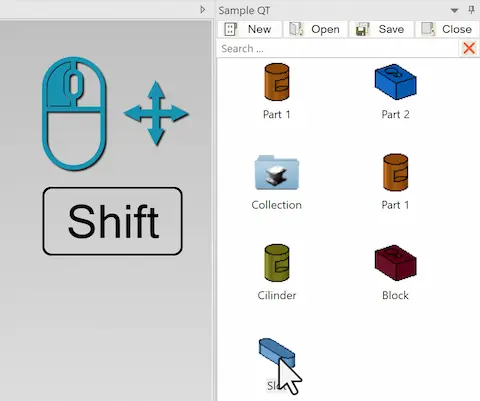
Would you rather decide where to place an item yourself? Drag the item to the desired location while holding down Shift. Release the item in the correct position. Other items will automatically move out of the way when necessary.
Good to know: If you drag an item onto an existing group while holding down the Shift key, you’ll add the item directly to that group.
4. Copy items to another catalog
You can also easily copy catalog items to another catalog. Drag the item to the desired catalog tab. When you hover your mouse over that tab while dragging, IronCAD automatically opens that catalog. You can then drop the item in the desired location.
The familiar Windows commands also work within the IronCAD catalogs. So you can simply use copy and paste.
That makes it easy to reuse existing components in another library without having to recreate everything from scratch.
5. Use Catalog Groups Directly in the Scene
You don’t always have to open a catalog group first to use an item. Drag the entire group to the Scene. As soon as you release the group, it will appear open on the screen. You can then place the item you want by double-clicking it.
This also works well with materials and colors. Drag a material or color onto a component in the Scene to instantly apply the selected look.
This way, you can use catalog groups more quickly and work with fewer unnecessary clicks.

Getting More Out of Catalogs in IronCAD
Catalogs in IronCAD let you do much more than just store parts. You can use them to design faster, implement standardization, and set up your own work environment more efficiently.
Would you like to learn more about IronCAD, catalogs, drag-and-drop design, and efficient modeling? Then be sure to check out our other knowledge articles, videos, and training courses, or visit the IronCAD Academy.